Deploy Machine Learning Model
Step-by-step tutorial for packaging and deploying a machine learning app to Google Cloud Run with Docker and Cloud Shell.
- Runtime
- Cloud Run
- App
- GPT-2 Flask
- Packaging
- Docker
- Config
- 2GB / 2 CPU
You are a hobbyist Machine Learning developer. You come across tons of exciting news related to artificial intelligence. You followed online tutorials and built something cool. Next, you want to show your creation to the world.
If you have been in this situation, you know there are very few options available to you. But this changed when Google announced Cloud Run.
Cloud Run Is the Game Changer
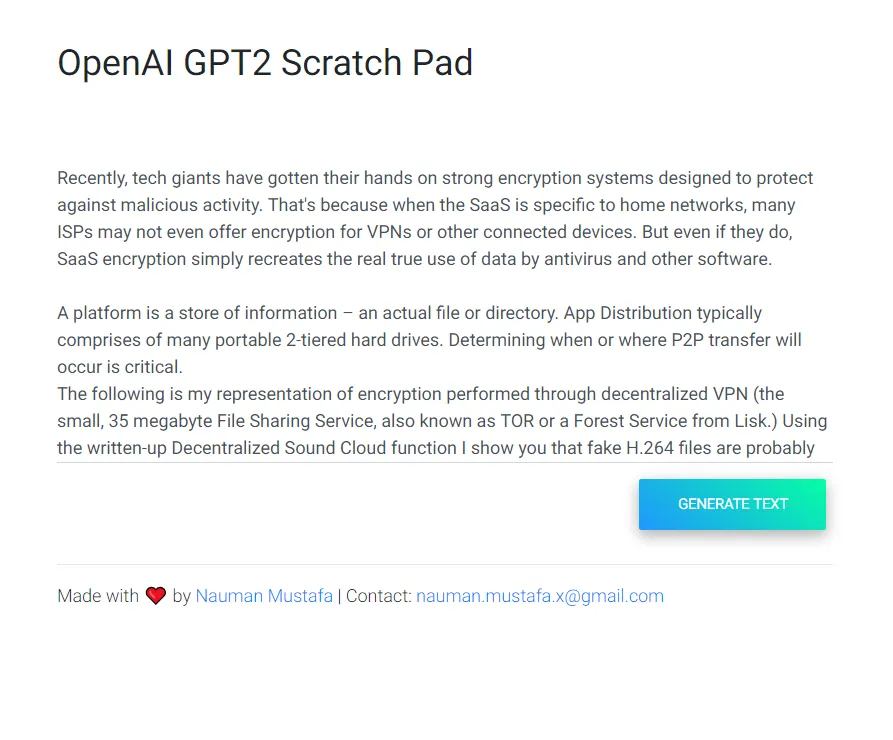
Cloud Run is one of the most exciting additions to Google Cloud. In this article, we deploy an open source pre-trained deep learning model on Cloud Run.
Getting Started with Google Cloud
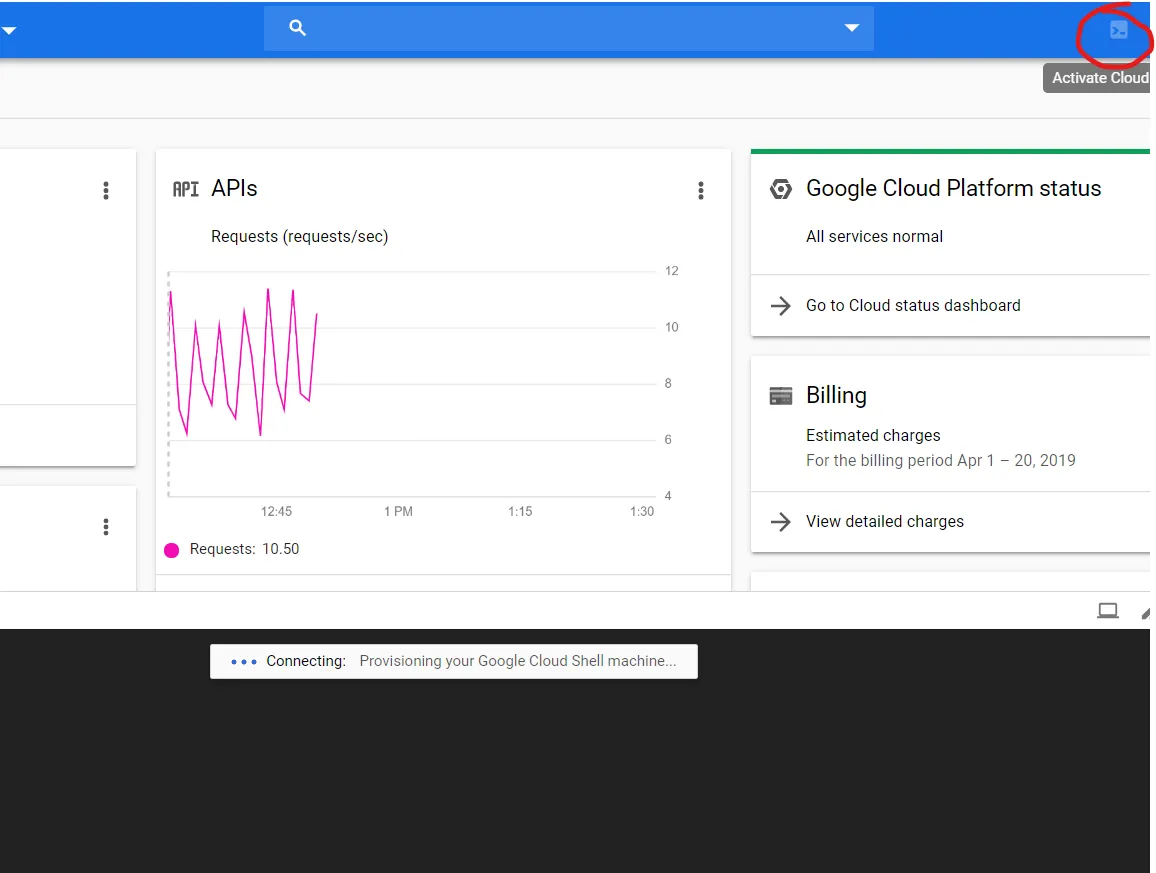
If you do not have an active Google Cloud account, you can sign up and start Cloud Shell once the project is ready.
Into The Code
For this tutorial, I used an existing deep learning project from GitHub: gpt-2xy. It uses HuggingFace's PyTorch implementation of GPT-2.
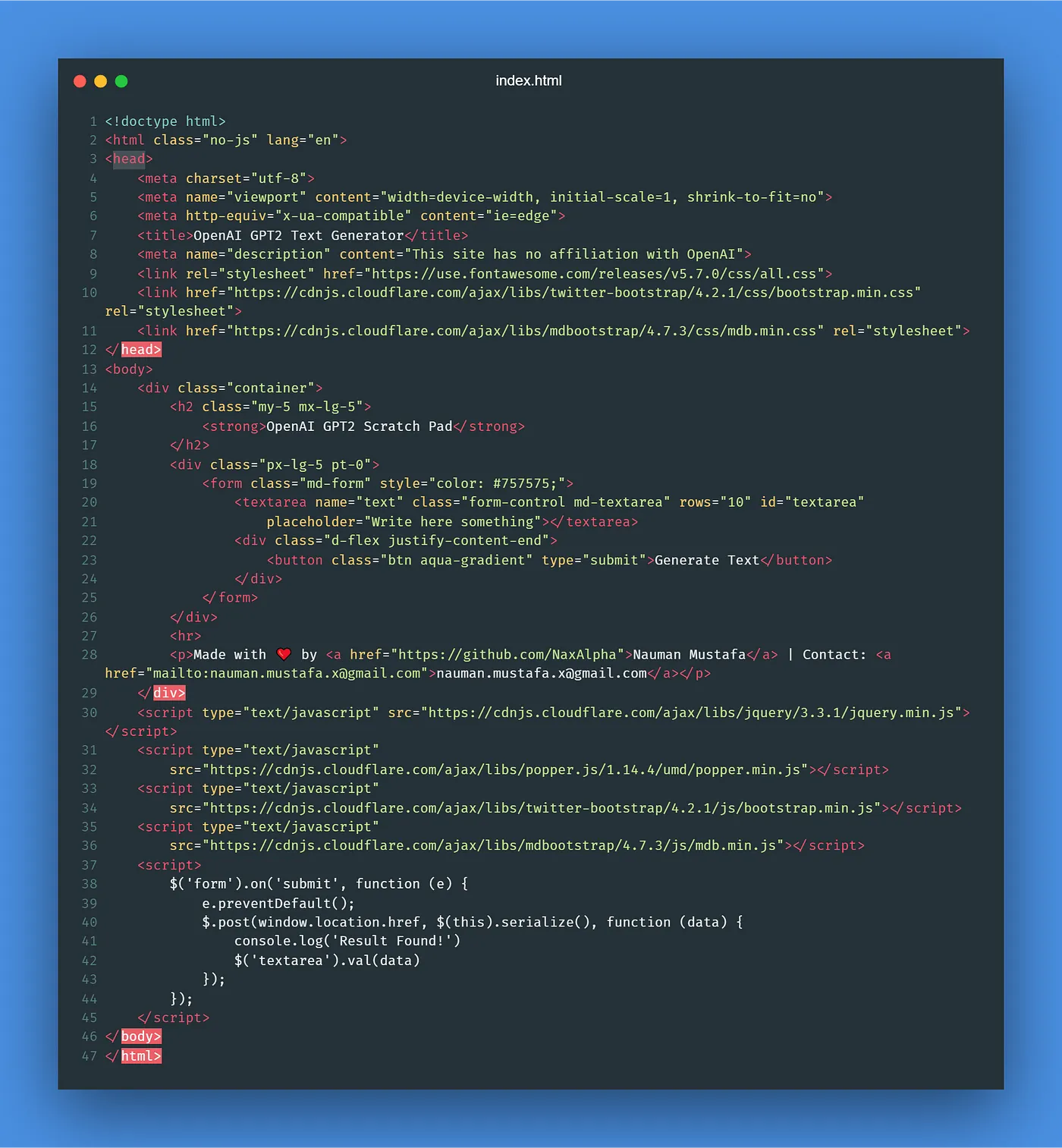
If you only want to deploy, you can skip this section. Otherwise, the first file is a minimal web UI.
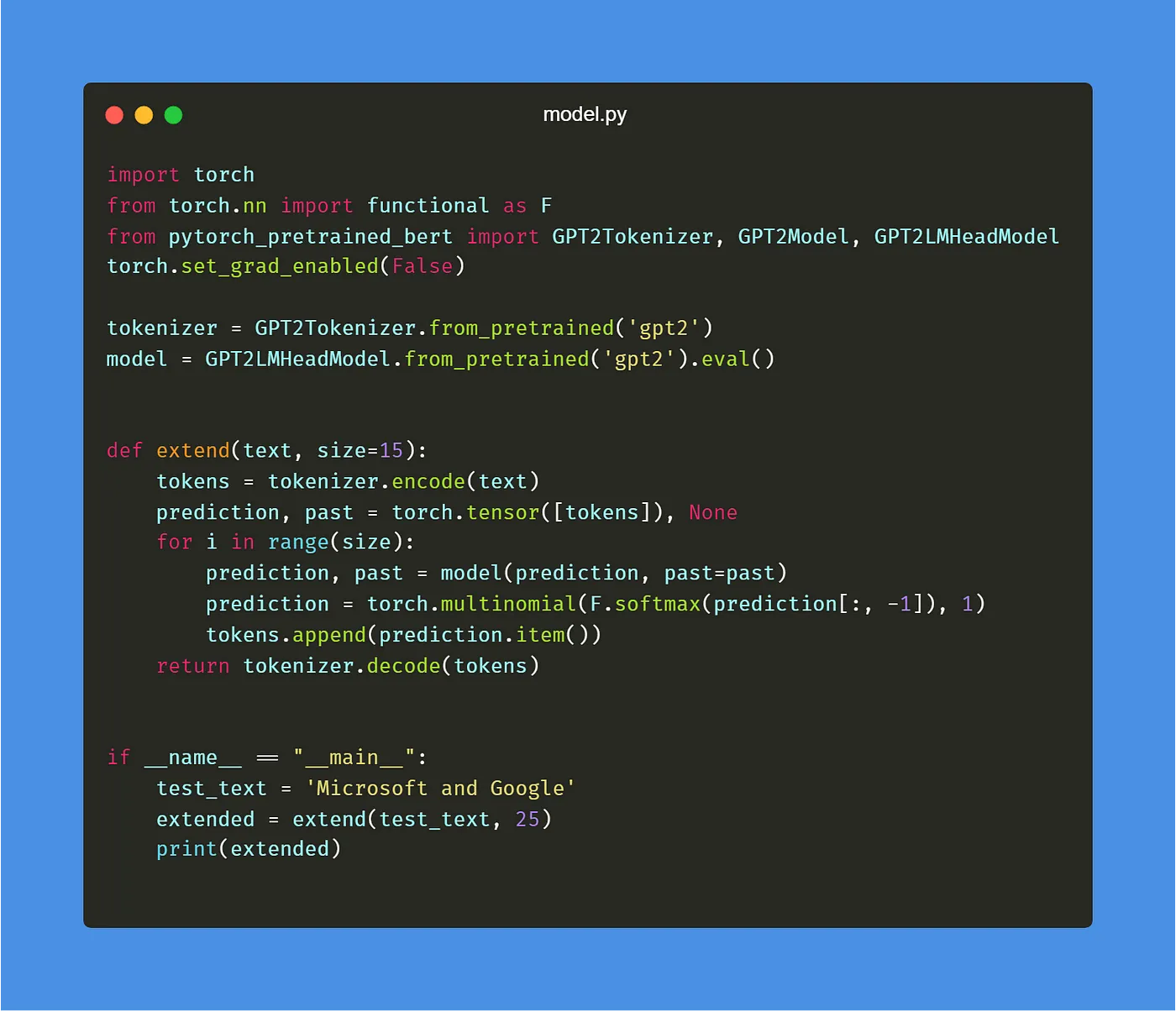
The model logic extends input text with GPT-2.
Finally, a Flask server serves both the user interface and the API.
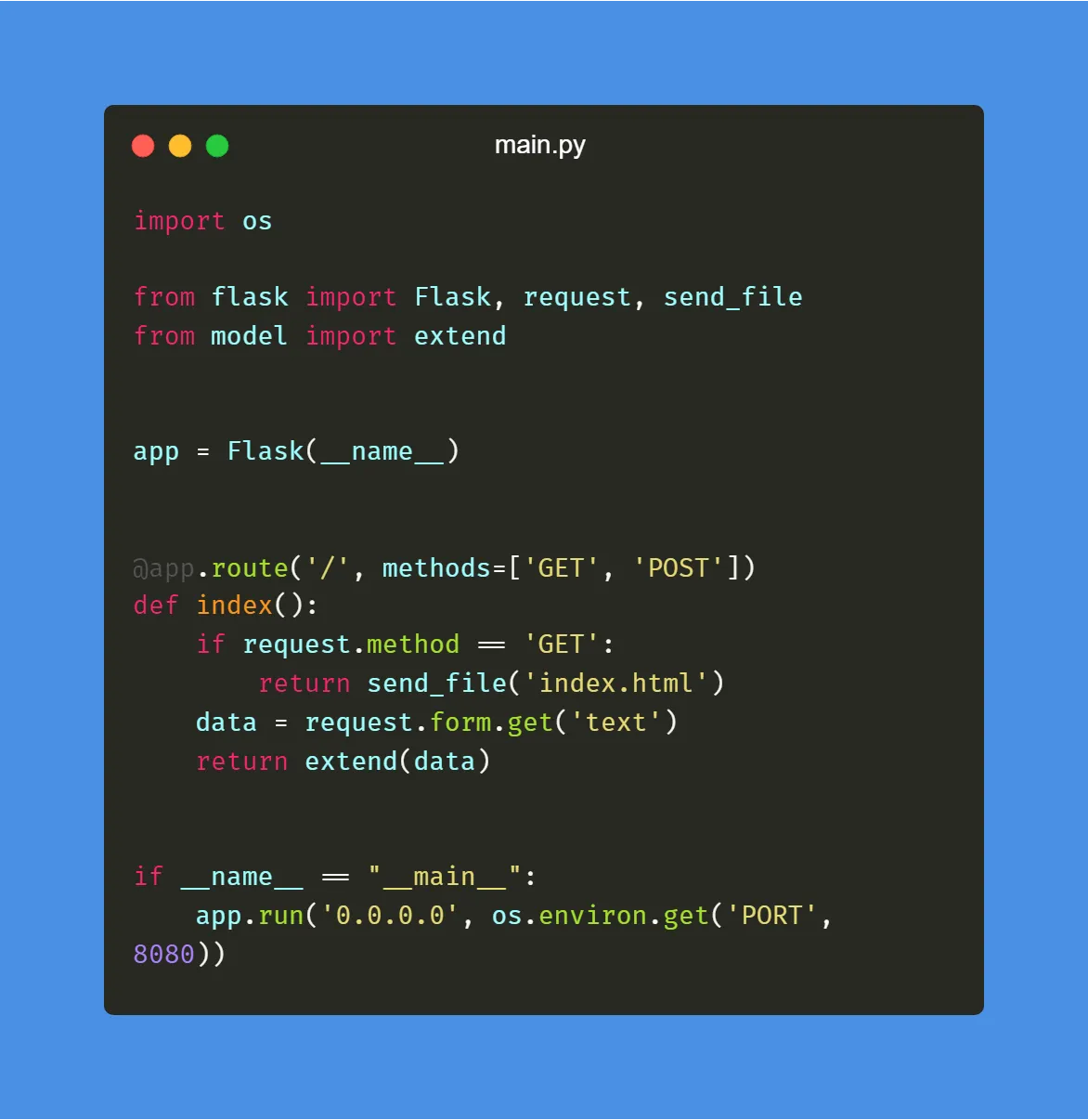
Requirements
You can test the project locally with these requirements:
- PyTorch, CPU version is fine
- transformers
- flask
python main.py
Containerizing the Project
Containerizing with Docker
Next, build a Docker image so the project can be deployed to Cloud Run.
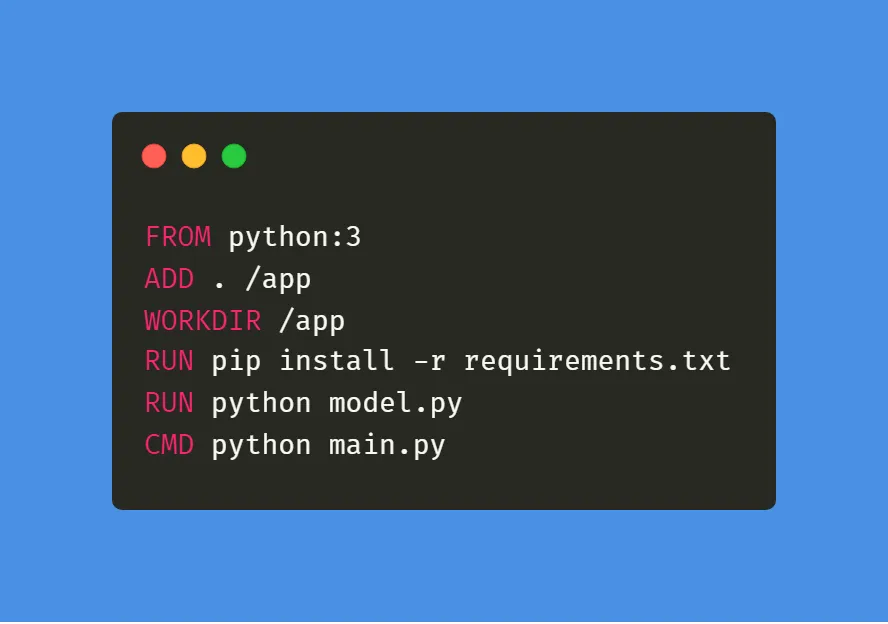
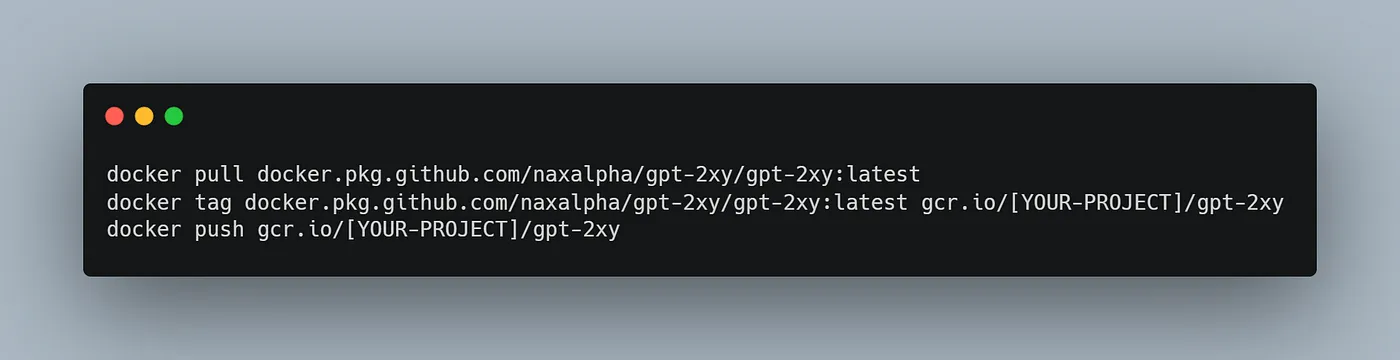
Building in Cloud Shell
You can build locally and push to Google Cloud, but if your internet is slow, Cloud Shell is more convenient. First get your project ID:
gcloud config list --format 'value(core.project)' 2>/dev/null
Docker Setup Steps
Then replace [PROJECT_ID] in the following commands:
-
git clone https://github.com/NaxAlpha/gpt-2xy -
cd gpt-2xy -
docker build -t gcr.io/[PROJECT_ID]/gpt-2xy . -
gcloud auth configure-docker -
docker push gcr.io/[PROJECT_ID]/gpt-2xy
Deploying to Cloud Run
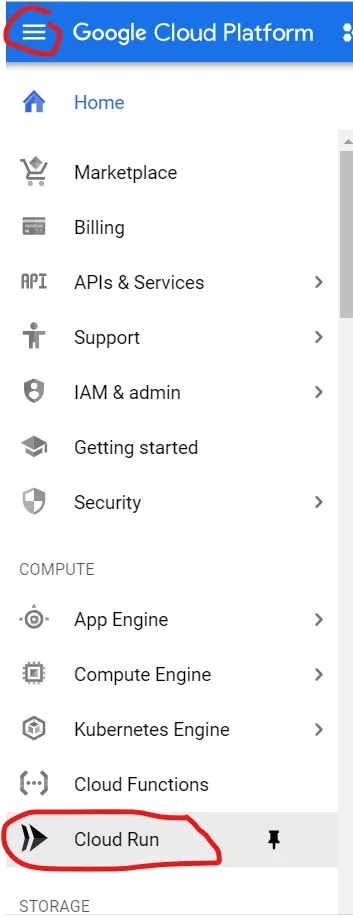
From the top-left menu, go to Cloud Run.
Then click create service.
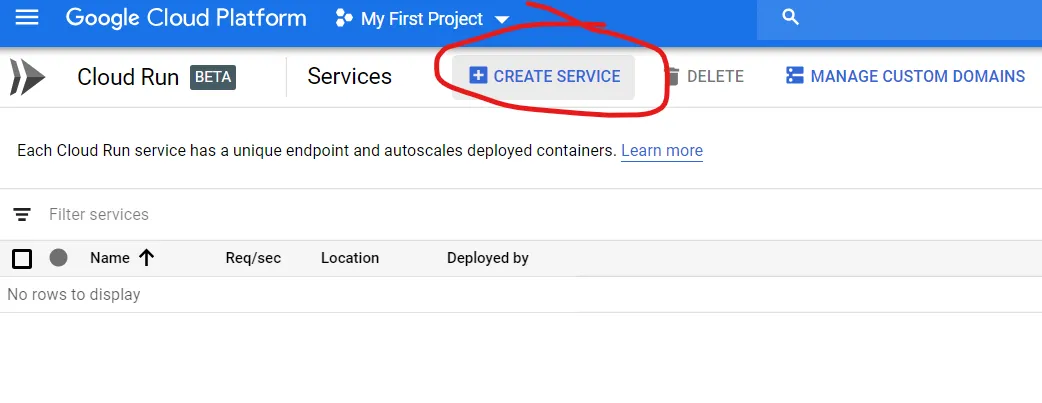
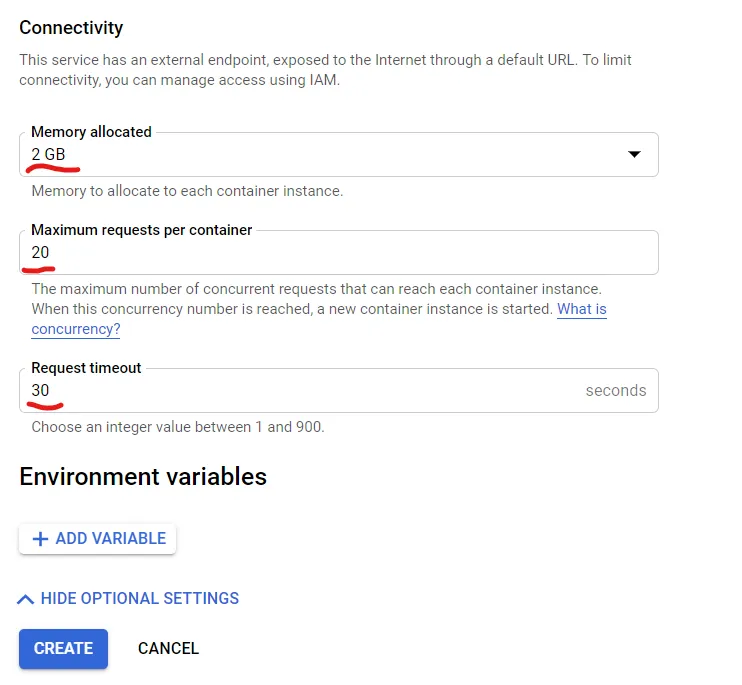
Important Configuration
Enable Allow unauthenticated invocations, then open optional settings.
Change memory to 2GB. Setting CPUs to 2 is also recommended because it makes generation faster.
Deployment Process
Click Create. After the deployment finishes, the app is ready.
Custom Domain (Optional)
You can also map a custom domain. I had deployed my own version at the time, but I later took it down because the project is old. The code is still usable if you want to deploy your own version.
Conclusion
The full source code is still available in the gpt-2xy repository.
Update (19-07-2020)